

Reading a Conversation
When you open a conversation from the list, you see the full detail view. This page shows the complete message history and gives you the controls you need to respond or take action.
The detail view
Section titled “The detail view”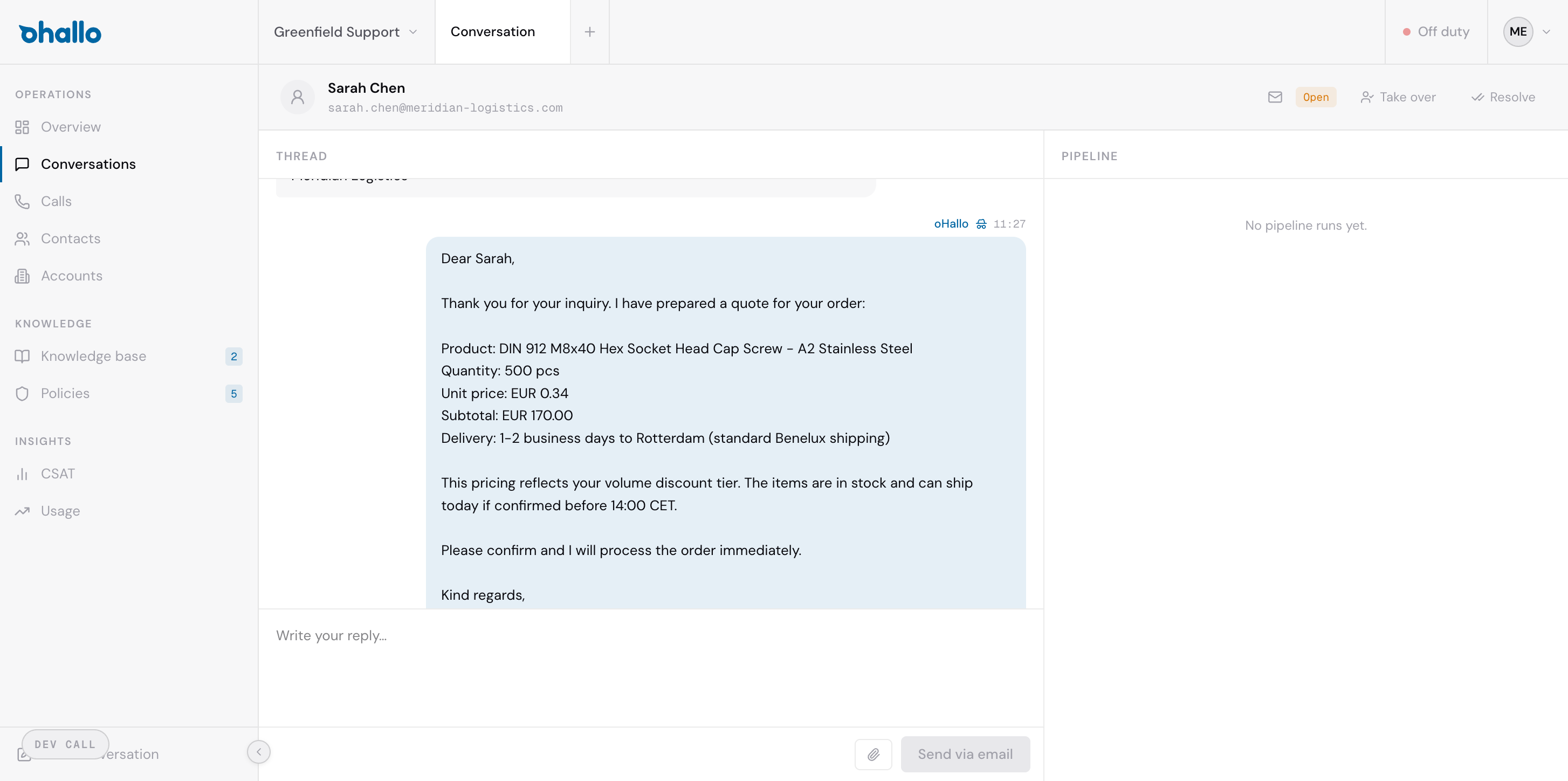
Conversation header
Section titled “Conversation header”At the top of the page, you will see the contact’s name and, on one line under it, their email address. This tells you who the conversation is with at a glance. On a call with no email address on file, the line shows the calling number.
In a live chat, a visitor who gave no name reads “Visitor”. When the contact has no email address on file and the visitor typed one in a chat, at its start or in the email field the chat shows, the line shows that address followed by ”· typed by the visitor”: it is the visitor’s own claim, as they typed it. An address on file always takes the line. On an email conversation that continues a website chat, the address carries “Typed in a chat, not confirmed”, or “Replied from this address” once an email has come back from it.
Action buttons
Section titled “Action buttons”In the top right corner of the header, you will find the main action buttons:
- Take over: Switches the conversation from assistant-managed to human-managed. The assistant stops processing, and you handle replies from this point forward.
- Resolved: Marks the conversation as complete and closes it.
These buttons change depending on the current state of the conversation. For example, if you have already taken over, you will see a Release button instead.
Message thread
Section titled “Message thread”The centre of the page displays the full message thread in chronological order. Each message is shown in a bubble:
- Customer messages: Messages from the customer appear on the left or in a distinct style so you can easily tell them apart from outbound messages.
- Outbound messages: Replies sent by the assistant or by an operator appear in a blue bubble. A label indicates whether the message was sent by oHallo (the assistant) or by a specific team member.
Each message shows who sent it, when it was sent, and the full content including any product details, pricing, or other information.
Hand-off card
Section titled “Hand-off card”When the assistant hands a conversation to your team, a hand-off card appears at the end of the thread. Its title says what to do, such as Handoff: contact the customer, and the counter beside it shows how long the hand-off has waited. Why a person gives the reason in one sentence, for example that verification ended after an eID approval was denied, that a change needs its own approval, or that a scheduled follow-up needs information from the customer. When the assistant flags a conversation for your team, the sentence names what it found in plain words, such as a legal threat or a request about the customer’s personal data. When the assistant escalated a turn, the reason sits on the card, and the turn’s Escalated note above it keeps the findings and any unsent draft. Once the card leaves the thread, the note shows the same reason. When verification fails lists the reasons verification gives.
After you have contacted the customer, choose Mark contacted, note who you contacted and the outcome, and choose Confirm. The card then leaves the thread. While a hand-off card is open and the assistant still manages the conversation, the header’s status reads Needs attention.
A question from a website chat takes one of two other titles. On an email conversation that continues a website chat, the card reads Handoff: reply to the customer, and your reply in that email conversation answers the visitor. On a website chat whose question was passed to your team with no way to reach the visitor, the card reads Handoff: no way to reach the visitor, and Mark handled takes the place of Mark contacted.
Linked conversations
Section titled “Linked conversations”A website chat passed to your team by email continues in an email conversation, and the two link to each other: a Continued by email card on the chat opens the email conversation, and a Continued from website chat card on the email conversation opens the chat. See When a chat continues by email.
Inspect
Section titled “Inspect”Each reply from the assistant has an Inspect link, which opens the steps behind that reply: the tools called and, where verification ran, each verification event. A green dot marks a step that succeeded and a red dot one that failed. The National eID events read eID approval requested, eID link issued, eID approval granted, eID approval denied and eID approval expired. A denial covers the customer refusing the request and other refusals, such as someone other than the customer approving it; expand the event to see which. Locked out for this call marks a call where verification stopped for the rest of the call.
Right sidebar: Pipeline
Section titled “Right sidebar: Pipeline”On the right side of the detail view, you will find the pipeline panel. This shows metadata about the conversation:
- Status: The current status of the conversation (Open, In progress, or Resolved).
- Pipeline stage: Where this conversation sits in your workflow pipeline, giving you additional context about its progression.
Reply box
Section titled “Reply box”At the bottom of the page is the reply box. Write your reply and send it with the button, which names where the reply goes, such as Send via email or Send via chat: the reply goes out through the channel the customer used, and on a website chat it can also go by email, as described below. The arrow beside the button offers Send + resolve, which sends the reply and then resolves the conversation. When your reply goes into a chat the visitor is in, Enter sends and Shift+Enter starts a new line; everywhere else, Enter starts a new line and Cmd+Enter (Ctrl+Enter on Windows) sends.
Replying to a website chat
Section titled “Replying to a website chat”On a website chat, where your reply goes depends on whether the visitor is still in the chat, whether the chat has ended or already continues by email, and whether a reply by email is possible. A reply by email goes to the visitor’s email address, whether it is on file or the visitor typed it in the chat.
- While the visitor is in the chat, and the chat has not ended or continued by email, the reply goes into the chat. When a reply by email is possible, Send via email in the arrow’s menu sends it by email instead.
- When the chat continues by email and the email conversation is still open, a line above the reply box says your reply goes to that email conversation, and Open opens it. While the visitor is still in the chat and it has not ended, Send via chat in the arrow’s menu sends it into the chat instead. When the Continued by email card shows Email could not be delivered, the reply does not go by email: while the visitor is in the chat and it has not ended, it goes into the chat, and otherwise the line says why.
- When the visitor has left, or the chat has ended, and a reply by email is possible, the line says the reply goes by email to the visitor’s address. Your reply is the first email, and the chat continues by email from there.
- When the visitor has left and a reply by email is not possible, the line says why, and the reply goes into the chat. The visitor sees it only if they open the chat again in the same browser while their chat session there lasts (it ends 6 to 12 hours after their last visit). When such a chat has ended, the line says why, and no reply can be sent from it.
A reply by email is not possible, for example, when the visitor gave no email address, when By email is off on the chat channel’s Chat handling tab, or when the email to the visitor could not be delivered.
Enter sends only when your reply goes into a chat the visitor is in. Everywhere else, including a chat the visitor has left and a chat that continues by email, Enter starts a new line and Cmd+Enter (Ctrl+Enter on Windows) sends, whichever the button reads. On a website chat, the keys that send are shown beside the button.
A reply sent by email does not appear in the chat. It is in the email conversation, and a line above the reply box says where it went, with Open email conversation.
Typical workflow
Section titled “Typical workflow”- Open a conversation from the list.
- Read through the message thread to understand the context.
- If the assistant has handled it well, no action is needed: the conversation will continue automatically.
- If you need to intervene, click Take over, then write your reply in the reply box and send it.
- When the issue is resolved, click Resolved to close the conversation.