

Users and Roles
Your team members are managed from the Users page in Settings. Here you can invite new users, assign roles, and review pending invitations.
The Users page
Section titled “The Users page”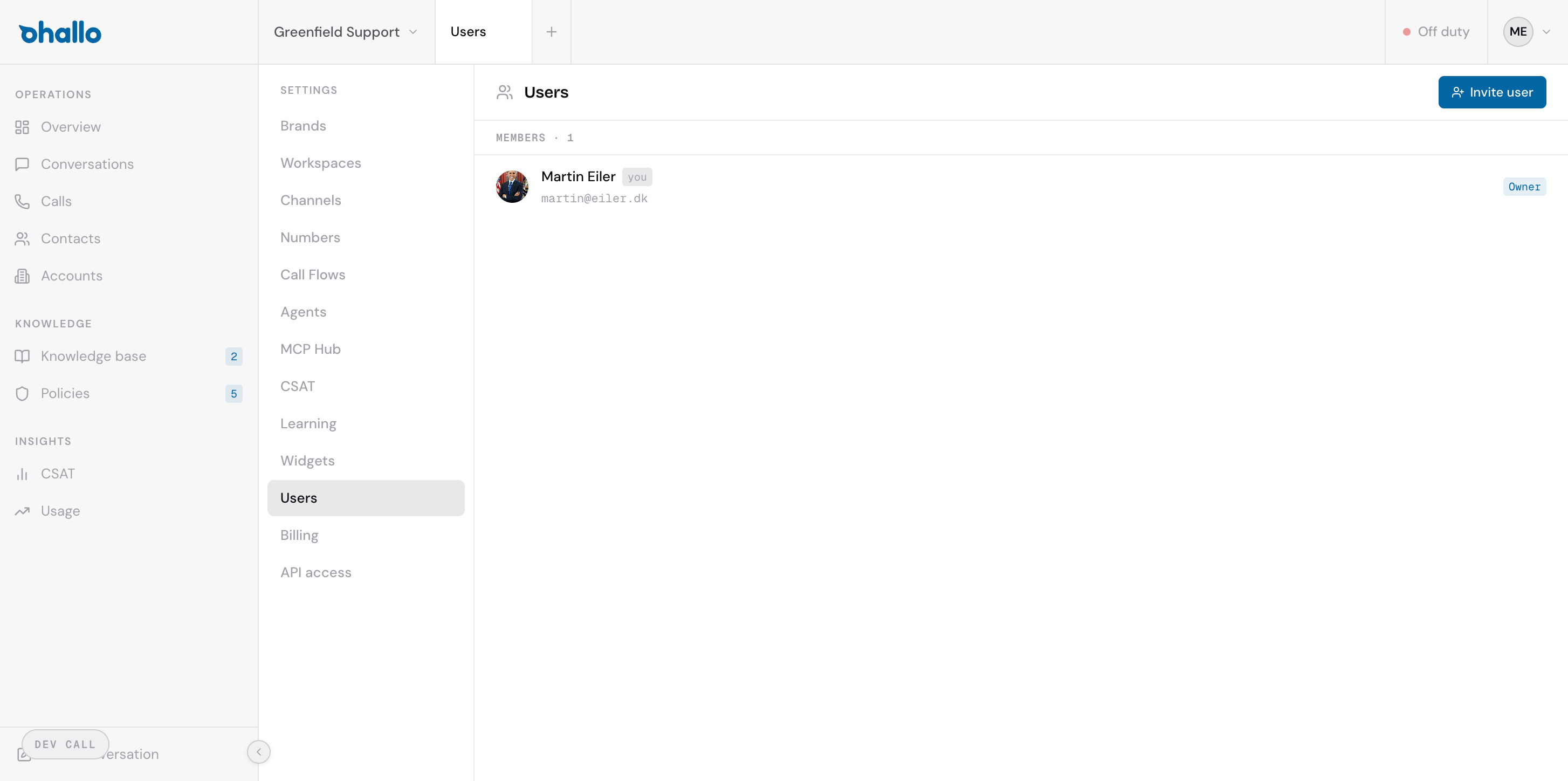
Go to Settings, then Users to see everyone on your team. Each row shows the member’s name, email address, the languages they speak with callers, and their current role. A row shows Operating language when no languages are chosen for the member. The total member count is displayed at the top of the list.
Inviting a new user
Section titled “Inviting a new user”- Click the Invite user button in the top-right corner.
- Enter the person’s email address.
- Select the role you want to assign them.
- For an Agent or Observer, choose the brands and workspaces they work in (see below).
- Send the invitation.
The invited person will receive an email with a link to join your organisation. Until they accept, they appear in the Pending invites section at the bottom of the page.
Roles explained
Section titled “Roles explained”Every user has exactly one role. The role determines what they can see and do within oHallo.
| Role | What they can do |
|---|---|
| Owner | Full control over everything: billing, settings, users, and all conversations. Every organisation has at least one Owner. |
| Admin | Manages users, brands, workspaces, channels, and agents. Has full access to conversations but cannot manage billing or subscription settings. |
| Billing | Finance only: can view and manage the subscription, invoices, and payment methods. Cannot access conversations or operational settings. |
| Agent | Day-to-day customer care. Can work with conversations, contacts, accounts, knowledge base articles, and policies. Cannot change settings or manage users. |
| Observer | Read-only access to conversations and data. Useful for managers or stakeholders who need visibility without the ability to make changes. |
Changing a user’s role
Section titled “Changing a user’s role”- Click on the user’s name in the list to open their profile.
- Select a new role from the role dropdown.
- Save your changes.
Role changes take effect immediately. The user does not need to log out and back in.
Suspending, reactivating and deleting a user
Section titled “Suspending, reactivating and deleting a user”Owners and admins can suspend, reactivate and delete users from the user’s profile.
- Click on the user’s name in the list to open their profile.
- Choose Suspend or Delete at the bottom of the profile, and confirm.
Suspend ends the person’s access at once. Every request they make from that moment is refused, their open dashboard sessions end, and at their next sign-in they see that their access has been suspended. Their user record, role, brand and workspace assignments and history stay in place, and the profile shows the status as suspended.
Reactivate user appears on a suspended user’s profile and restores access with the same role and assignments.
Delete removes the user permanently. Their access ends the same way as a suspension, and their user record is gone. Delete someone who has left the organisation for good; suspend someone who may return.
API keys belong to the organisation, so a key issued by the person keeps working after either action. Rotate any key they held under Settings, then API access.
Brands and workspaces for agents and observers
Section titled “Brands and workspaces for agents and observers”Owners and admins work across the whole organisation. Agents and observers work in the brands and workspaces assigned to them, and the workspace switcher lists those workspaces.
- Brands: a whole brand covers every workspace of the brand, including workspaces added later.
- Workspaces: a single workspace, for someone who works in only part of a brand.
Assign at least one brand or workspace. To change the assignments, click the user’s name and pick from Brands and Workspaces; each change saves straight away.
Languages
Section titled “Languages”A call the assistant hands to a person goes to the colleagues on duty who speak the language of the call. The call rings for them, and Answer next caller on the Calls page connects each of them to the longest-waiting caller whose language they speak. Any waiting caller can still be connected from the queue.
A user speaks the languages chosen for them. A user with no languages chosen speaks the operating language of each workspace they work in. To choose a user’s languages, click the user’s name and pick from Languages spoken; each change saves straight away.
When nobody on duty speaks the language of the call, the voice channel’s When the team is closed or nobody is on duty setting applies.
Pending invites
Section titled “Pending invites”Invitations that have not yet been accepted appear in a separate section below the member list. You can see the email address and the role assigned to each pending invite. If an invitation is no longer needed, you can revoke it before the person accepts.