

Channels
Channels are the communication paths your customers use to reach you. Each channel connects oHallo to a specific email address, chat widget, or messaging platform so that inbound messages flow into your conversation inbox automatically.
The channels page
Section titled “The channels page”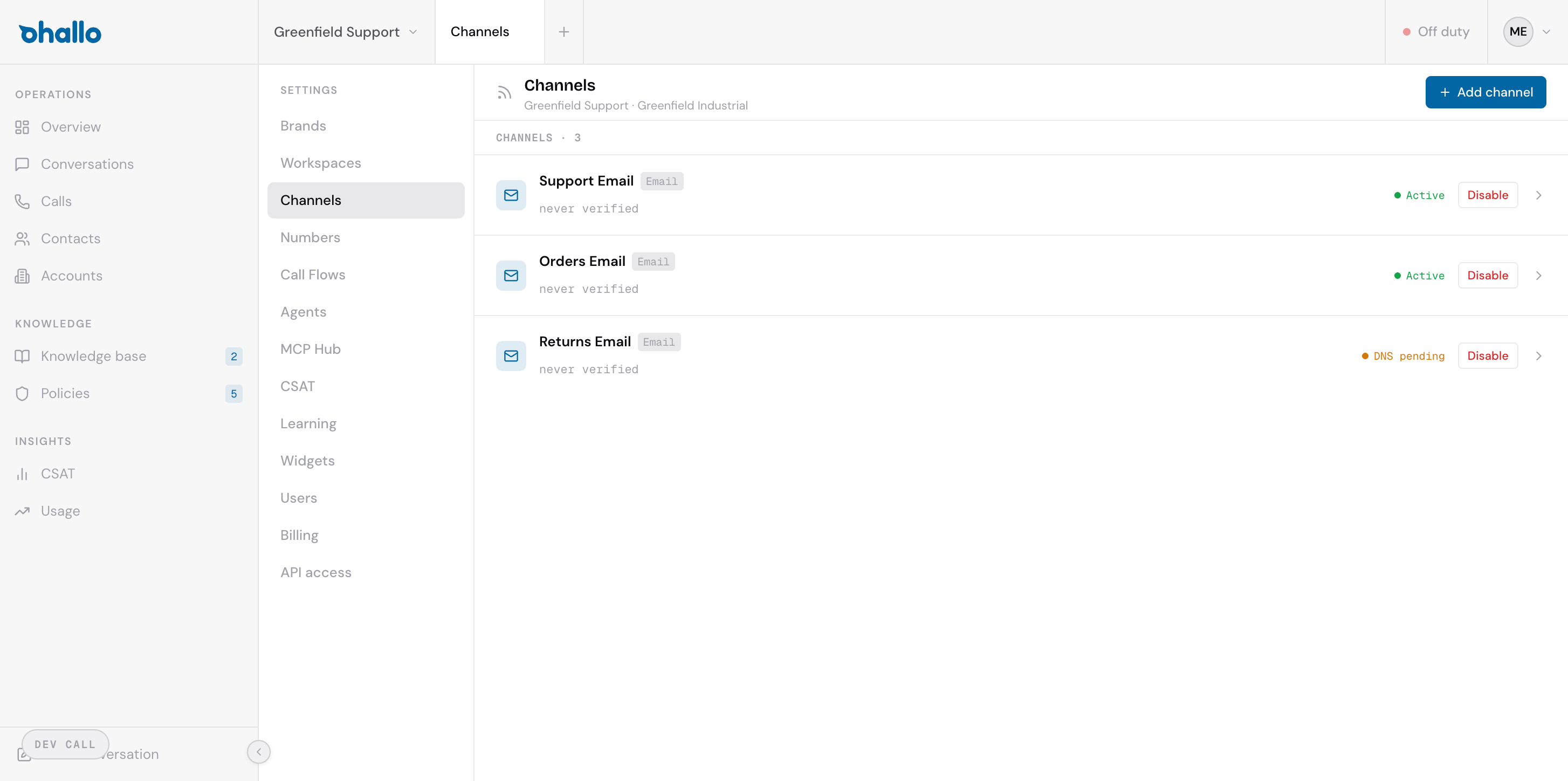
Go to Settings, then Channels to see all channels in your workspace. The page header shows which workspace and brand these channels belong to. Each row displays:
- Channel name: the name you gave this channel (for example, “Support Email”, “Orders Email”)
- Type badge: the channel type, such as “Email”
- Status indicator: the current state of the channel (see below)
- Disable button: lets you temporarily disable the channel without deleting it
Channel types
Section titled “Channel types”oHallo supports the following channel types:
| Type | Description |
|---|---|
| Connects an email address so that customer emails become conversations in oHallo. Replies are sent from the same address. | |
| Chat Widget | A widget you embed on your website. Visitors can start conversations directly from your site. |
| Connect a WhatsApp Business number for messaging. |
Channel statuses
Section titled “Channel statuses”| Status | What it means |
|---|---|
| Active | The channel is fully operational. Messages are being received and replies are being sent. |
| DNS pending | The channel has been created but is waiting for DNS records to be configured. This applies to email channels that need DNS records: MX, SPF and DKIM records when oHallo receives the mail directly, the three DKIM records alone for DKIM via root. |
| Waiting for first email | The email channel is set up and is waiting for the first email to reach it through the forwarding rule in your mail provider. It turns Active when that email arrives. |
| Error | Something went wrong with the channel configuration. Click into the channel to see the error details and resolve the issue. |
Adding a new channel
Section titled “Adding a new channel”- Select Add channel in the top-right corner.
- Select the channel type: Email, WhatsApp, Live chat, or Voice.
- Configure the settings for that type.
- Save the channel.
Choosing Live chat takes you to the chat widget setup, since live chat is set up as a widget. Choosing Voice binds a phone number to the voice assistant. See Live chat and the chat widget and Voice and Numbers.
Email channels
Section titled “Email channels”An email channel receives mail in one of these ways, chosen when you add it:
- Receive directly: oHallo provides the DNS records to configure at your domain registrar: an MX record that routes incoming email to oHallo, an SPF record that authorises oHallo to send email on behalf of your domain, and DKIM records that sign outbound email to prevent spoofing. Until these records are in place, the channel status shows “DNS pending”. Once DNS propagation completes and the records are verified, the status changes to “Active”.
- Forward to oHallo: one rule in your mail provider redirects the mail to the forwarding address on the channel’s page, which shows the steps for your provider. You pick how replies are sent. With Simple forwarding, replies leave from an oHallo address with your address as the reply-to, and no DNS changes are needed. With DKIM via root, replies leave from your own address, signed by three DKIM records you add at your domain’s registrar; your domain’s MX record stays as it is, and the channel’s page shows the rule steps once the records are verified. The channel shows “Waiting for first email” until the first email arrives, then “Active”. When you forward from Gmail’s own settings, Gmail first sends a confirmation to the forwarding address: it appears on the channel’s page with its link or its code, whichever Gmail sends. Open the link, or enter the code in Gmail, then turn forwarding on.
On the channel’s page, each DNS record shows what DNS answers for it now: a check mark when it is published, or Not found or Different value. The records are checked again when you come back to the page.
An email channel can also connect to a Microsoft 365 mailbox by signing in to it. The connection starts from the channel’s page in the oHallo dashboard and completes in the same browser, so the person who starts it is the person who signs in: the mailbox’s own account, or a work or school account with Full Access (to read the mailbox) and Send As (to reply from its address) on it. When your Microsoft organisation requires administrator approval of the app, an administrator approves it first. Microsoft 365 can take up to an hour to apply a permission after it is granted. A reply sent before Send As applies is refused and the channel’s page says so; the notice clears with the first reply that goes out after that.
Signing in again to a connected Microsoft 365 mailbox keeps its current connection until the new sign-in has switched on inbound mail, so a sign-in that fails leaves the mailbox working as before.
Identity verification on an email channel can use the email link and, on a channel set up to receive mail directly, National eID. Each is enabled per channel under Settings, then Verification, on the Channels tab.
Live chat channels
Section titled “Live chat channels”A live chat channel is set up as a widget you embed on your website. You configure its appearance, get an embed code, and control how the assistant hands off to your team. See Live chat and the chat widget for the full setup guide.
Disabling a channel
Section titled “Disabling a channel”Click the Disable button on any channel row to temporarily stop it from receiving messages. Disabling a channel does not delete it or its conversation history, and you can re-enable it at any time.
Editing a channel
Section titled “Editing a channel”Click on any channel row to open its settings. You can update the channel name, configuration, and other properties. For email channels, the DNS record information is also available on the settings page for reference.