

Widgets
Widgets are embeddable components you can add to your website to let visitors interact with your support system directly. oHallo offers three types of widgets, each serving a different purpose.
The Widgets page
Section titled “The Widgets page”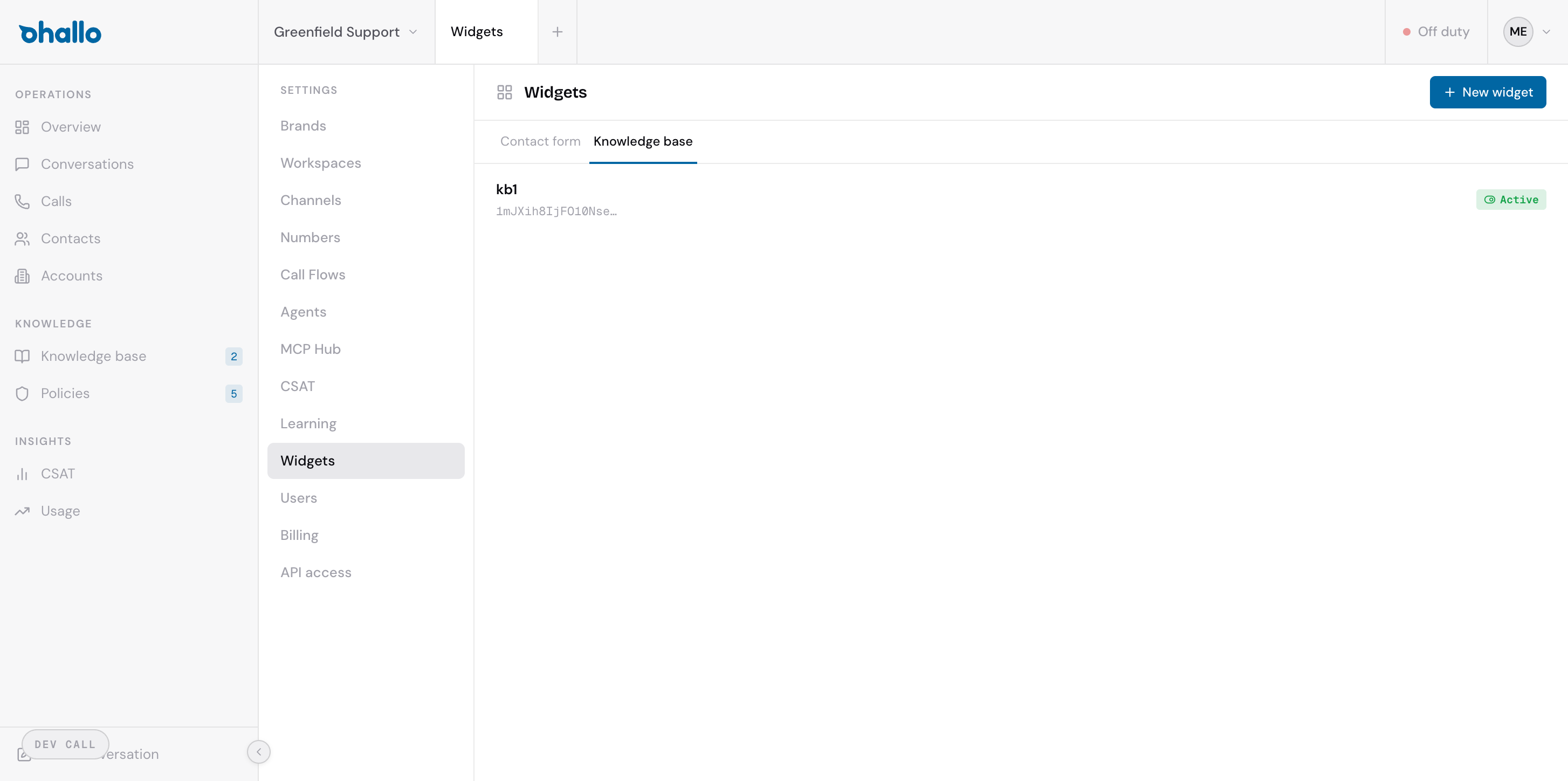
Go to Settings, then Widgets to manage your widgets. The page has three tabs:
- Contact form: widgets that let customers submit inquiries from your website
- Knowledge base: widgets that let visitors search your knowledge base for answers
- Booking: widgets that let visitors book meetings with your team
Each row shows the widget’s name, its public key, and its status (Active or Inactive).
Widget types
Section titled “Widget types”Contact form
Section titled “Contact form”A contact form widget embeds a form on your website where customers can submit inquiries. When a visitor fills out the form and submits it, the message arrives in oHallo as a new conversation and is processed like any other inbound message.
Use this when you want to give website visitors a structured way to reach your support team.
Knowledge base
Section titled “Knowledge base”A knowledge base widget embeds a searchable interface on your website where visitors can look up answers from your published knowledge base articles. Customers can find information on their own without contacting support.
Use this to reduce inbound volume by helping visitors self-serve before they submit a request.
Booking
Section titled “Booking”A booking widget embeds a date and time picker on your website where visitors can schedule meetings with your team. The booking process uses a two-phase confirmation flow:
-
Visitor selects a slot. Available slots are calculated from your calendar’s working hours minus existing events and buffer time. oHallo creates a tentative event and sends the visitor a confirmation email.
-
Visitor confirms. The tentative event becomes confirmed, a conferencing link is generated (Google Meet), and both parties receive confirmation details.
-
Expiry. If not confirmed within the expiry period (default: 24 hours), the tentative event is removed and the slot becomes available again. Pending slots are locked to prevent double-booking.
Use this when you want website visitors to schedule calls or demos directly from your website without back-and-forth emails.
Booking widgets require a connected calendar. See Calendars to set up a calendar connection before creating a booking widget.
Language
Section titled “Language”The contact form and knowledge base widgets show their buttons, messages and search box in the operating language of the widget’s workspace, whatever language the visitor’s browser uses. Everything you write yourself appears exactly as you wrote it: the form’s field labels, placeholders, dropdown options and success message, and your knowledge base articles and topics. A contact form with no success message of its own shows a standard thank-you message in the workspace’s language.
The operating language is set on the workspace, under Settings, then Workspaces. A change reaches the widgets on your website within a few minutes.
Creating a new widget
Section titled “Creating a new widget”- Click the + New widget button in the top-right corner.
- Select the widget type: Contact form, Knowledge base, or Booking.
- Configure the widget settings:
| Setting | Applies to | Description |
|---|---|---|
| Name | All | A label to identify this widget (e.g. “Main site contact form” or “Sales demo booking”). |
| Description | All | An internal note about where or how this widget is used. |
| Field mapping | Contact form, Booking | Define which fields appear on the form and how they map to conversation data. |
| Styling | All | Customise the widget’s colours and positioning to match your website’s design. |
Recording which page a submission came from
Section titled “Recording which page a submission came from”Some values belong to the page rather than the person filling in the form: which job posting an application answers, which product page a lead came from, which campaign brought them.
Add a field and set its type to Hidden. It never appears on the form, and the page that embeds
the widget supplies its value. The embed code on the widget’s page then includes a line for it, for
example data-field-role="...", which you replace with the value for that page. Put the widget on
several pages with a different value on each, and every submission records where it came from.
The value is stored and shown with the rest of the answers in the conversation the form creates. Anyone can edit the page they got the embed code from, so treat the value as a label for your team to read rather than as proof of anything.
If you mark a Hidden field Required, every page embedding that form has to supply it, otherwise
submissions from that page fail.
| Calendar connection | Booking | Which connected calendar to use for availability and event creation. |
| Slot duration | Booking | Meeting length: 15, 30, 45, or 60 minutes. |
| Event title template | Booking | Template for the calendar event title. Supports variables: {contactName}, {contactEmail}, {contactCompany}. |
| Confirmation expiry | Booking | Hours before an unconfirmed tentative slot expires (default: 24 hours). |
| Visitor reminder | Booking | Days before the meeting to send a reminder email to the visitor. |
| Team briefing | Booking | Days before the meeting to send a briefing email to your team member with context about the visitor. |
- Save the widget.
Embedding a widget on your website
Section titled “Embedding a widget on your website”After creating a widget, oHallo provides an embed code: a small snippet of HTML you add to your website. Copy the embed code from the widget’s settings and paste it into your website’s HTML, typically just before the closing </body> tag.
Your web developer or site administrator can help with this step if needed. The widget will appear on every page where the embed code is included.
Managing widgets
Section titled “Managing widgets”- Active widgets are live and accessible to visitors via their public key. Customers can see and interact with them on your website.
- Inactive widgets are paused. The embed code remains on your site, but the widget will not load for visitors.
To change a widget’s status, click on it in the list and toggle it between Active and Inactive. This lets you temporarily disable a widget without removing the embed code from your website.